Rednote automation scripts: execution and permission boundaries

Redaily
9/12/2025

Updated
In Redaily, a script means an extension workflow: you save targets and actions, and the extension opens logged-in pages to execute them. It is not a cloud runner or access to an internal ranking score. This guide covers installation, actual parameters, starting and stopping, and checking records.
Check the environment before installation
You need desktop Chrome, connectivity and the target website account. Sign in separately to Redaily and the platform. Open a post manually on the selected regional site first. Repeatedly starting a script cannot fix an inaccessible website.
The website’s backup download is a CRX file. Prefer the store installation. For a CRX, open chrome://extensions/, enable Developer mode, drag the file onto the page and follow Chrome’s confirmation prompts. If Chrome refuses it, use the store or contact support; do not rename a CRX to ZIP. Only use Load unpacked when you already have an extracted ZIP source package or developer directory containing manifest.json.
Choose the task entry point
- Explore: recommendations or keyword search for topical browsing.
- Comment: specified post links with conditions for comment actions.
- Profile: known author profiles and their posts.
Choose the type matching your input. Do not search vaguely when you already have an author's profile, or invent profile links when you only have a topic.
Configure parameters that actually exist
| Parameter | What it controls | Common misunderstanding |
|---|---|---|
| Keywords and website filters | Search, sorting and candidate scope | It does not automatically score content quality |
| Action switches and probabilities | Whether likes, bookmarks, follows or comments are attempted | Not a guaranteed action quota |
| Comment mode | Custom, AI Style or AI Identity | Custom automated comments also require Pro |
| Posts per profile | Depth within a Profile workflow | Not a global daily quota |
| Duration-based stopping | Run duration for Explore/Profile | Requires Pro and differs from a scheduled start |
| Weekday/date schedules | Local Chrome start times | Not reliable execution while shut down or asleep |
These settings do not provide built-in proxy protection, bulk account switching or a universal safe quota. Use actual fields shown by the extension.
First run: change one thing at a time
- Create and name a workflow with one target or keyword.
- Disable unnecessary outward interactions and save.
- Start manually and watch for the correct site and content.
- Stop, wait for the state change and inspect the browse record.
- Add one action or condition at a time after the basic path works.
For individual approval of AI wording, use the on-page candidate helper rather than automated workflow comments. Workflows can publish directly; do not assume another confirmation will appear.
Inspect execution results
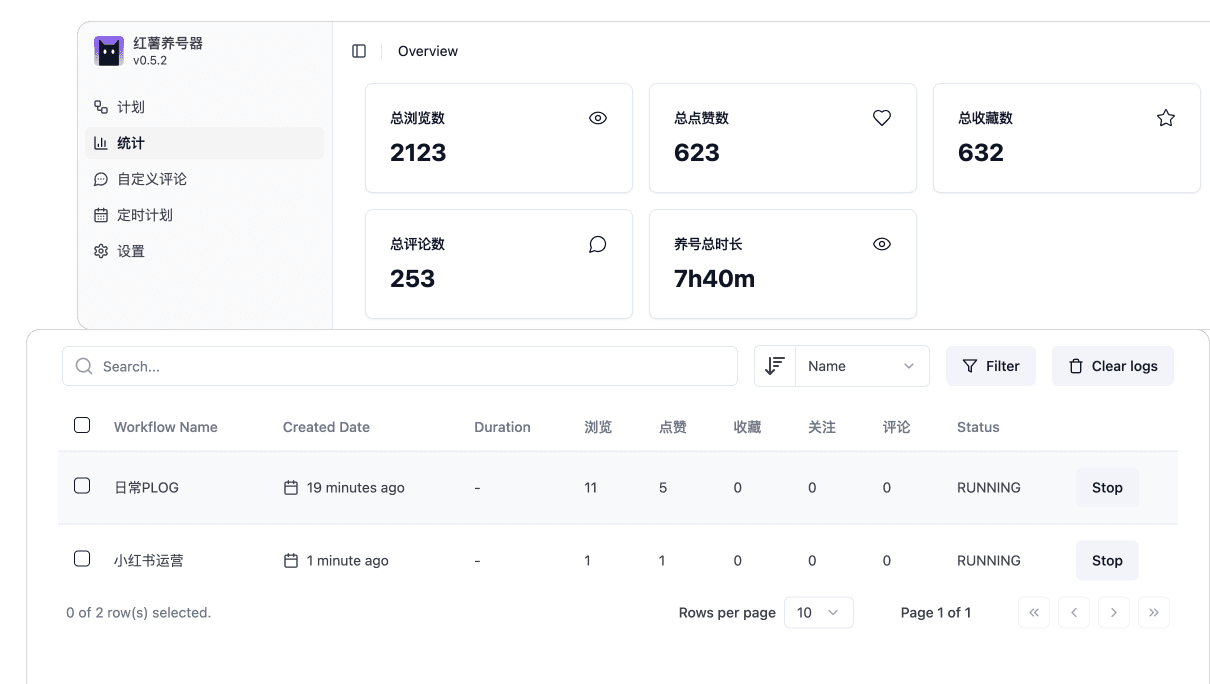
This older interface illustrates summary cards versus individual execution rows. It is not a current-version screenshot or a growth experiment. Browses, likes, bookmarks and comments are extension actions; follows are outgoing actions rather than followers gained.
Find the run in current Data Analytics and check time, status, actions and errors. Running records may lack an end time, and interrupted records can be incomplete. Export CSV/JSON and inspect its contents when comparing externally; the screenshot's historical numbers are not your expected result.
Troubleshoot in sequence
No page opened: check that configuration was saved, verify region and complete links, and manually open the same destination.
Page opened but no action: inspect switches, access, filters and processed records. Small samples need not match configured probability percentages.
AI failed: distinguish sign-in, expired Pro access, connectivity, timeout and model errors. Generation is separate from insertion and publication.
Repeated starts or stopping problems: inspect simultaneous workflows and duplicate extension copies, then retain logs for support. Closing a single tab does not establish that every background task stopped.
Unattended execution: page state, minimization, background throttling, sleep and connection changes can affect local execution. No unattended-completion guarantee is made.
Permissions and data scope
Current permissions include broad HTTPS access, cookies, alarms and network rules. Workflows and logs are mainly local, but account, subscription and AI requests contact the server; AI also uses external model services. Local execution does not mean no data is transmitted or that encrypted storage has been independently verified.
Stop for verification, action limits or inappropriate comments. Random delays do not guarantee evasion of detection. Evaluate accuracy and total setup, supervision, review and rework time for an equivalent task and record actual outcomes and their conditions.
Product reference
Product steps were checked against extension 3.5.3. See the related guide for instructions and pricing for access. Report behavior that differs through feedback, including the version and a redacted error.