Comment workflow tutorial: targets, filters, replies and verification

Redaily
7/20/2025

Updated
A Comment workflow opens specified posts, reads comments and attempts configured likes, replies, follows or user collection. This tutorial follows the configuration sequence through verification and troubleshooting. Records describe your actions, not impressions received or followers gained.
Before starting: page access and entitlement
Sign in to Redaily and the target Xiaohongshu/Rednote account in the same Chrome profile you will use. Choose the correct region and open the post manually to confirm that comments are visible. Preserve required access parameters in shared links rather than guessing a destination from shortened text.
Likes and follows are separate from replies. Automated replies require Pro whether they use custom wording, AI Style or AI Identity. User collection and schedules also require Pro. Leave replies disabled for an initial access-and-filter check.
Step 1: create the workflow and add links
- Open workflows in extension settings and create a Comment workflow.
- Use a recognizable name, such as Storage tutorial questions, and describe the intended scope.
- Paste the complete post link copied from the website. Add others as needed, but start with one to isolate invalid links.
- If the configuration asks whether you are the author, answer for the currently signed-in account.
- Save. Saving stores configuration; it does not itself establish that a run has started.
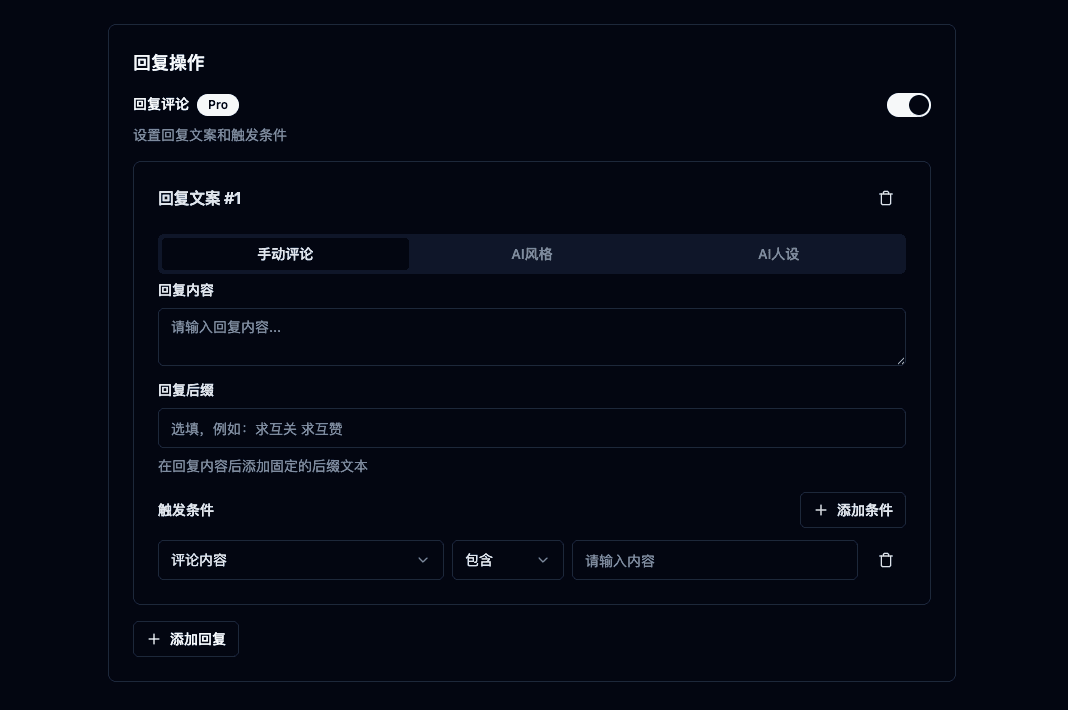
This historical screenshot illustrates the configuration layout. Labels can change between releases; use the fields shown by your installed extension.
Step 2: configure reply content
Enable replies, add a reply item and choose its type. Custom replies use your supplied wording. AI Style generates text from the current context. AI Identity adds a writing perspective, not evidence that you hold a profession or qualification.
| AI style | What to review |
|---|---|
| Auto | Whether the chosen direction addresses the question |
| Casual | Invented purchase or usage experiences |
| Sincere praise | A specific detail actually present in the post |
| Ask for details | Whether the requested information is already supplied |
| Interactive question | Whether a real answer would be useful |
| Light humor | Whether the tone fits this discussion |
| Empathy | Invented personal experience or relationships |
| Practical addition | Whether the added information can be verified |
Review suffixes as part of the final message. Avoid unrelated follow-for-follow requests or fixed sentences implying purchases or follows that did not happen. When no reply is appropriate, do not reply merely to fill a quota.
A workflow can publish directly. To approve each message, disable workflow replies and use the on-page AI candidate helper, insert a candidate and send it yourself. AI requests transmit relevant context to the product server and external model services.
Step 3: set matching conditions
Each reply item can have conditions. Likes, follows and collection also have their own filters; configuring one action does not copy its conditions to the others.
| Field | Comparison |
|---|---|
| Comment text | Contains a term or equals the whole text |
| Comment time | At/after or at/before a specific date and time |
| Comment likes/replies | Numeric lower or upper bound |
| Author following/followers/likes and bookmarks | Range from visible profile fields |
| Gender/location | Options or region sets offered by the interface |
| Probability | Whether an action is attempted, not a safe threshold |
To research sizing questions after a chosen date, combine text containing size with a time lower bound and select match all. With match any, older sizing comments and recent unrelated comments can both qualify. Inspect a few matches manually before running broader actions.
Follower counts, gender and location do not establish purchase intent, and profile fields can be missing or outdated. Remove unnecessary personal-profile conditions.
Step 4: configure the other actions separately
When only researching a discussion, leave outward replies and follows disabled. Check like conditions, follow targets and the destination group for collection. A profile entering your local group does not mean its owner consented to marketing.
Empty conditions can produce broad matches. No added filters does not mean no users will be processed. Review every enabled action before saving.
Step 5: run manually before scheduling
Save and start manually, observe the target page and log, stop, and check that actions matched the configuration. Once that works, Pro users can select weekdays and times or a specific date and time.
Monday at 20:00 is a start time, not a promise to run until 22:00. Schedules depend on local Chrome, connectivity and a valid session. Browser closure or computer sleep can interfere with execution.
Step 6: verify and troubleshoot
Find the execution in Comment analytics and check the workflow name, time, status, processed counts and errors. Verify collected records separately in Users; a success label is not a substitute for inspecting output.
- Post did not open: manually test the same link and check region, login and connectivity.
- No action after opening: inspect switches, Pro access, restrictive conditions and already-processed records.
- Inappropriate replies: stop automated replies and review wording, suffixes, style and context.
- Verification or restrictions: stop and resolve the website notice; do not clear deduplication to repeat sends.
- Missed schedule: check saved state, local date/time and device availability.
Retain the version, failure time and a redacted error for support. Random delays and deduplication do not guarantee freedom from platform detection or restrictions.
Product reference
Product steps were checked against extension 3.5.3. See the related guide for instructions and pricing for access. Report behavior that differs through feedback, including the version and a redacted error.